If you want to move from simple chat-style AI demos to something that performs useful work on a schedule, n8n is one of the most practical starting points. It gives you a visual workflow builder, built-in integrations, and a structured way to combine a language model with tools, memory, triggers, and downstream actions.
This tutorial walks through a concrete project: building a daily briefing AI agent in n8n. The agent will use OpenAI as its reasoning layer, pull fresh information from the web, fetch weather data, remember prior interactions, format a readable briefing, email it automatically, log results to Google Sheets, and reduce repeated content over time.
The goal is not to build a toy chatbot. The goal is to build a workflow that can run every morning with minimal manual intervention.
What You Are Building
By the end of this setup, your workflow will do the following:
- Start automatically on a schedule.
- Ask an AI agent to assemble a short daily briefing.
- Pull weather information for a chosen city.
- Look up recent news.
- Retrieve a fun fact from Wikipedia.
- Format the final output for email.
- Send the briefing through Gmail.
- Store results in Google Sheets.
- Check prior outputs so the agent avoids repeating the same content.
This pattern is useful well beyond newsletters. Once the structure works, you can adapt it for sales research, market monitoring, internal reports, support digests, or personal knowledge summaries.
Before You Start: Accounts, APIs, and Practical Decisions
You will save time if you make a few decisions before opening the canvas.
Choose Cloud or Self-Hosted n8n
For fast setup, n8n Cloud is the easiest path. You can authenticate Gmail more directly and avoid server administration.
For long-term production use, self-hosting often gives you better control over cost, uptime, credentials, and execution limits. It also matters if you expect heavier workflow volume or want stricter control over where data is processed.
A practical rule:
- Use
n8n Cloudwhen validating the workflow idea. - Consider
self-hosted n8nwhen the workflow becomes part of a recurring business process.
Services You Need
Prepare these accounts and credentials:
n8nOpenAI APISerpApiOpenWeatherMapGmail / Google accountGoogle Sheets access
Important Billing and Credential Notes
A common beginner mistake is assuming a ChatGPT subscription is the same as API access. It is not. In automation workflows, OpenAI usage typically goes through the API platform and is billed separately based on usage.
That means you need to:
- Create or open an account at
platform.openai.com. - Create a project.
- Add billing credit.
- Generate an API key.
- Store that key securely.
Treat API keys like passwords. If a key leaks, someone else can consume your quota and generate cost on your account.
For SerpApi, the free tier is useful for testing, but you should watch query usage if your workflow runs daily or across multiple users.
For OpenWeatherMap, make sure you copy the correct API key and use the exact city name expected by the service. Many workflow errors that look like AI problems are actually bad tool parameters.
Create the Base Workflow
Start from a blank workflow in n8n.
Your first version should be intentionally simple: trigger, AI agent, model, memory, and tools. Do not begin with Gmail, Sheets, formatting branches, and history logic all at once. Build the smallest working path first and test each layer.
Step 1: Add a Temporary Chat Trigger
When you are exploring the agent behavior, a chat trigger is the fastest way to test prompts interactively.
Add a trigger node such as Chat Message, then add an AI Agent node after it.
This gives you a safe sandbox for answering questions like:
- Does the model credential work?
- Can the agent call tools?
- Does memory persist?
- Is the prompt producing the kind of output you want?
Step 2: Add the AI Agent Node
In n8n, the AI Agent node acts as the coordinator. It receives input, sends reasoning work to the model, optionally uses memory, and calls tools when needed.
Think of the node in layers:
- Main agent node: the decision-maker.
- Model sub-node: the language model brain.
- Memory sub-node: context across turns or runs.
- Tool sub-nodes: external capabilities such as search, weather, or knowledge retrieval.
This modular design is what makes n8n suitable for agent-style workflows instead of one-off completions.
Connect OpenAI as the Agent Brain
Inside the AI Agent node, add an OpenAI model connection.
You can use another supported model provider if you prefer, but OpenAI is a straightforward choice for a beginner workflow because the setup is well understood and the behavior is usually predictable enough for this kind of briefing task.
Configuration Checklist
- Paste your OpenAI API key into n8n credentials.
- Select the model you want to use.
- Save the credential.
- Run a basic test prompt such as a greeting.
Example test prompt:
Hello. Briefly confirm that the agent is connected and able to respond.
If the node returns a clean response, your model setup is working.
Pitfall: Subscription Confusion
Do not assume your personal ChatGPT subscription automatically covers API workflow usage. It usually does not. If your node fails with authentication or billing-related messages, verify the API project, key, and billing status on the OpenAI developer platform.
Add Memory So the Agent Has Context
Once the model works, add a simple memory component.
For an interactive agent, memory helps the model remember recent exchanges. For an autonomous recurring workflow, memory becomes even more important because it lets the agent keep continuity between runs, avoid stale phrasing, and work with prior context.
At the early stage, Simple Memory is enough.
Why Memory Matters Here
Your daily briefing should not sound like it is being generated from scratch with no awareness of previous output. Even lightweight memory can help the agent:
- retain recent conversational context during testing,
- remember prior instructions,
- support duplicate-reduction behavior later.
Pitfall: Missing Session ID
A major transition happens when you remove the chat trigger and switch to a scheduled trigger. Without chat input, memory may no longer receive a usable session identifier automatically.
This often leads to an error similar to “session ID not found.”
The practical fix is to define a session ID explicitly in the memory node.
For a basic single-purpose daily agent, a static identifier is acceptable.
Example idea:
daily-briefing-agent-main
If you later expand this into a multi-user system, you should replace that with a dynamic session strategy, such as one ID per user, department, or briefing type.
Add the First Tools: Wikipedia and Web Search
An agent without tools can only infer from model knowledge and prompt context. That is not enough for a daily briefing that needs fresh information.
Start by attaching these tools:
WikipediaSerpApi
Wikipedia Tool
Wikipedia is useful for low-risk enrichment content such as background facts, short explainers, or a “fun fact” segment. It is simple to configure and usually needs no extra complex mapping beyond enabling the tool.
Good uses:
- a random animal fact,
- a historical note,
- short contextual information for a topic in the briefing.
SerpApi Tool
SerpApi gives the agent a way to search for fresh news and current topics. This is what turns the workflow from a static summarizer into a current-awareness system.
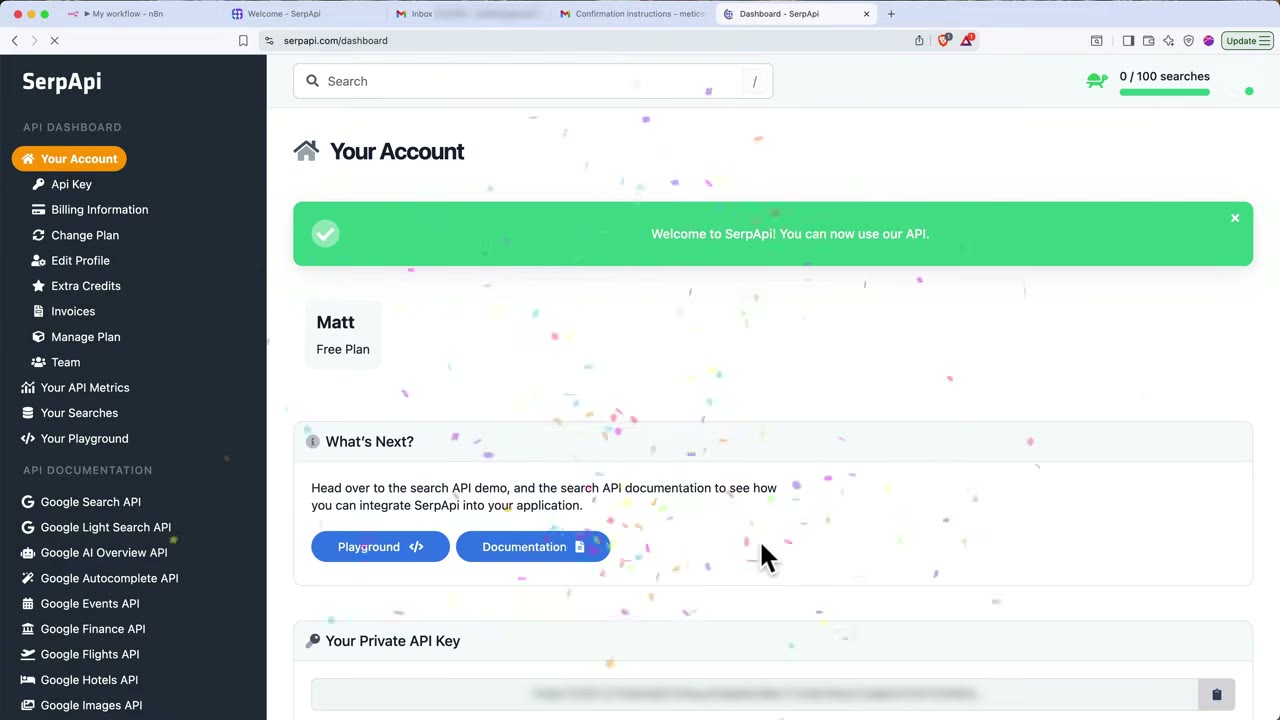
Set up the credential with your SerpApi key, then verify the tool can return search results.
Prompting the Agent to Use the Tools Properly
The tool connection alone is not enough. Your instructions must make the task clear.
A simple interactive test prompt could be:
Find one major positive news item from today and one interesting animal fact from Wikipedia. Return both in a concise format.
This tests two things at once:
- whether the agent can choose the right tool,
- whether the output structure is usable.
If the agent fails to search or produces generic unsupported claims, refine the prompt so it explicitly asks for current information and instructs the agent to use available tools.
Add Weather Data and Turn the Agent Into a Real Daily Briefing System
The next tool is OpenWeatherMap.
This is where the workflow starts becoming operational rather than demonstrational.
Configure OpenWeatherMap Carefully
Create a credential with your API key, then specify the city.
Be precise about location names. If the service expects a particular city string and you use an ambiguous or misspelled name, the node may fail or return irrelevant data.
A good practice is to first test the city directly in the weather service’s own interface, then copy that exact naming into n8n.
After configuration, run the node by itself and inspect the output. You should see structured weather data, not a vague success state.
This isolated test is worth doing. If you skip it, later failures can be misdiagnosed as prompt or agent problems when the real issue is the weather tool.
Replace the Chat Trigger With a Scheduled Trigger
Once the agent can think and use tools, stop treating it like a chatbot.
Delete the temporary chat trigger and replace it with a schedule-based trigger such as On a Schedule or Schedule Trigger.
A common setup is daily at 08:00.
This is the key architectural shift:
- Chat trigger: useful for development.
- Schedule trigger: required for autonomous operation.
What Changes When You Do This
When the agent is no longer waiting for a human message, you need to provide the task instructions from inside the workflow itself.
That means the prompt source should switch from trigger input to a custom prompt defined in the AI Agent node.
Write the Prompt as an Operational Instruction
The prompt should describe the job, the constraints, the tone, and the output format.
Do not write it like a casual chat request. Write it like an operating brief.
A useful daily briefing prompt includes:
- what sources to gather,
- which city’s weather to use,
- how many news items to include,
- what kind of tone to keep,
- whether repetition is allowed,
- the required output format.
Example structure:
Create a concise daily briefing.
Include:
1. Today’s weather for San Francisco.
2. Two to three positive or constructive news items from today.
3. One interesting fact from Wikipedia.
Do not repeat topics already used in recent briefings when possible.
Format the result as a polished mini email newsletter in Markdown.
Current date: {{timestamp variable}}
If the trigger exposes a timestamp, inject that value into the prompt so the model has explicit temporal context.
Why This Improves Reliability
Agents behave better when the task is framed as a stable recurring job rather than an open-ended request. Clear constraints reduce wandering behavior, tool misuse, and overly long outputs.
Handle the Memory Error After Switching to Scheduled Runs
After changing the trigger, test the workflow. This is where many beginners hit the session ID problem.
If your memory node breaks because the chat session context disappeared, define the session manually.
For a simple daily agent, a fixed key is fine. For example:
briefing-session-primary
This is not the most advanced design, but it is operationally sound for a single daily digest workflow.
The important lesson is that memory requires an identity anchor. Chat triggers often give you one automatically; scheduled triggers usually do not.
Send the Briefing With Gmail
Once the AI Agent node produces solid output, add a Gmail action after it.
Choose the action that sends a message.
Your basic mapping should look like this:
To: your destination email addressSubject: a dynamic subject such asDaily Briefing - {{readable date}}Body: the AI Agent output
Gmail Authentication Choices
If you use n8n Cloud, signing in with Google may be the simplest route.
If you self-host n8n, Google OAuth2 setup is often more involved. You may need to create OAuth credentials in Google Cloud, define redirect URIs correctly, and configure the credential manually.
Common Gmail Pitfalls
- Using the wrong Google account.
- Incomplete OAuth consent configuration.
- Redirect URI mismatch.
- Sending plain Markdown into a field that expects formatted HTML.
That last issue matters. A technically correct email can still look poor if the output format does not match the mail node expectations.
Improve Presentation: Markdown, HTML, and AI Formatting
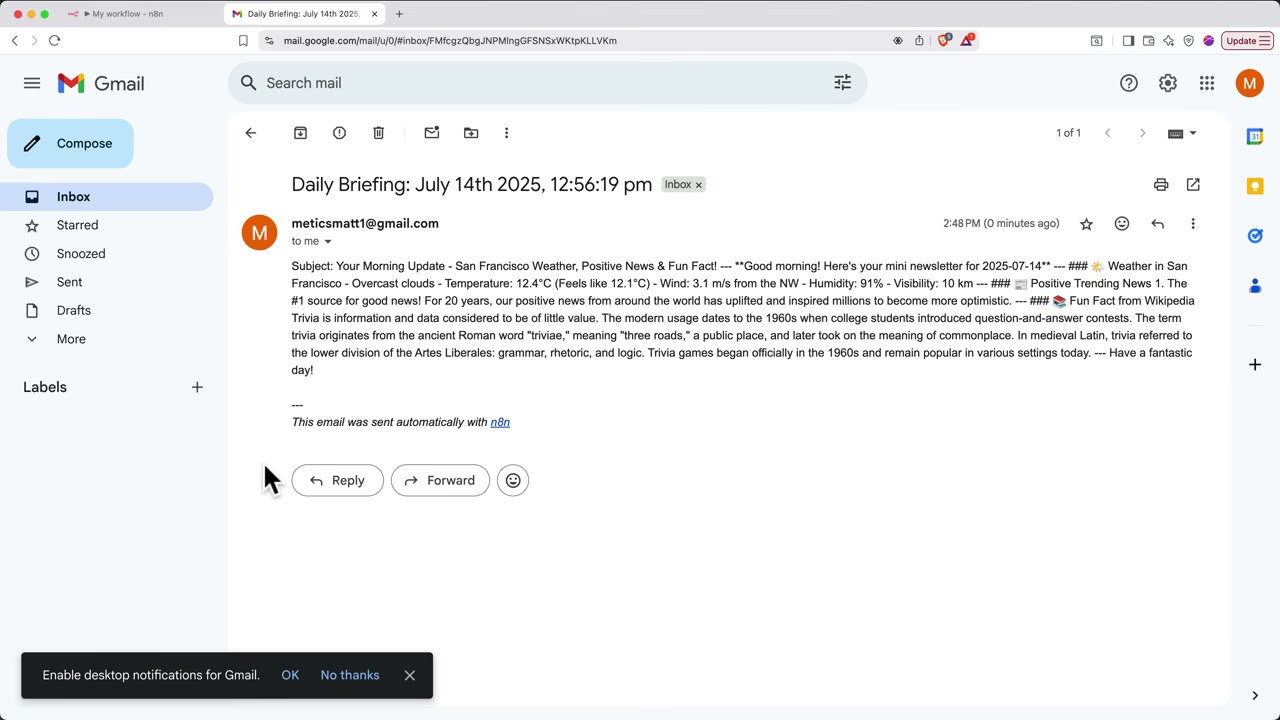
When you first send the briefing, the content may be correct but visually underwhelming.
This is normal. Raw AI output is not automatically good email output.
You have three practical options:
- Keep plain text for maximum simplicity.
- Generate clean Markdown and convert or render it appropriately.
- Ask the agent to produce HTML suitable for email.
Which Option to Choose
For early-stage reliability, Markdown is a good middle ground. It helps enforce structure without making the prompt too fragile.
If you later need more polished email presentation, you can either:
- add a conversion step from Markdown to HTML, or
- instruct the model to produce lightweight email-safe HTML.
Prompting for Better Formatting
Example instruction:
Format the briefing with a short title, a weather section, a news section with bullet points, and a closing fun fact. Keep it compact and email-friendly.
Pitfall: Over-Styling
Avoid asking for complex HTML with advanced CSS unless you really need it. Email clients are inconsistent, and excessive formatting makes the workflow harder to maintain.
Log Outputs to Google Sheets
A daily agent becomes much more useful when it leaves an audit trail.
Add a Google Sheets node after the email step or in parallel with it, depending on how you want to structure the flow.
Useful columns include:
run_datesubjectweather_summarynews_summaryfun_fact_topicfull_outputstatus
This serves several purposes:
- historical review,
- debugging,
- duplicate checking,
- performance tuning,
- business reporting.
Example Row Strategy
For each run, append one row containing the final briefing and a few extracted fields. If you later want more granular analytics, split news items into separate columns or rows.
Why Logging Matters Operationally
Without a log, it is hard to answer basic questions such as:
- Did the workflow actually run today?
- Did the content quality degrade over the last week?
- Is the agent repeating itself?
- Which prompt version produced the best results?
Reduce Repetition With History and Knowledge Checks
One of the most useful ideas in the workflow is preventing duplicate output.
A daily briefing quickly loses value if it repeats the same story, the same fact pattern, or nearly identical phrasing every few days.
There are two practical layers of defense.
Layer 1: Prompt-Level Instruction
Tell the agent not to repeat recent items.
This is necessary, but not sufficient. Models do not enforce perfect history tracking on their own.
Layer 2: History-Aware Review
Use previously logged briefings as a lightweight knowledge base. Before finalizing the new briefing, review recent outputs and compare topics.
In practical terms, that can mean:
- retrieving recent rows from Google Sheets,
- exposing them to the agent as reference context,
- instructing the agent to avoid overlapping headlines or repeated facts.
This is far more reliable than prompt wording alone.
A Pragmatic Duplicate-Prevention Rule
Ask the agent to reject items that are too similar to the last few runs and replace them with alternatives.
Example instruction:
Before finalizing, review recent briefing topics. If a story or fact is too similar to the last few outputs, replace it with a different item.
This does not guarantee perfect novelty, but it materially improves quality.
Test the Workflow in Stages, Not All at Once
A stable n8n agent is usually built through progressive testing.
Recommended order:
- Test the OpenAI model connection.
- Test each tool independently.
- Test the AI Agent with manual prompting.
- Test memory behavior.
- Replace the chat trigger with a schedule.
- Test the scheduled prompt.
- Test email delivery.
- Test Google Sheets logging.
- Test duplicate-control logic.
- Activate the workflow only after all parts work separately.
This sequence reduces debugging complexity. If you connect everything first and the run fails, the source of failure is harder to isolate.
Stability Tips for Real Use
Once the workflow works, the next challenge is keeping it reliable.
Keep the Prompt Narrow
The broader the task, the less predictable the output. A briefing with weather, 2 to 3 news items, and one fact is manageable. A request for “everything important today” usually produces inconsistent results.
Prefer Explicit Tool Roles
Assign each tool a clear purpose:
- OpenWeatherMap for weather only
- SerpApi for current search
- Wikipedia for evergreen factual enrichment
This makes it easier to diagnose problems.
Watch API Quotas and Cost
Even simple daily workflows have recurring cost. Track:
- model token usage,
- search API calls,
- weather API requests,
- email limits if relevant.
Keep a Human-Readable Run Log
Google Sheets works well for this because it is easy to inspect without digging through execution internals.
Start With One Recipient
Before expanding distribution, send the workflow to yourself. Validate the content quality, formatting, timing, and duplication behavior first.
Using Templates Without Losing Control
n8n templates can accelerate setup, but they are not a substitute for understanding the workflow.
Use templates when you want:
- a fast starting structure,
- node wiring inspiration,
- examples of credential usage.
Do not use templates blindly. Review:
- trigger type,
- prompt design,
- credential assumptions,
- output destinations,
- error handling.
A template is useful if you can explain why each node exists. If you cannot, it becomes technical debt before the workflow is even live.
When Self-Hosting Starts Making Sense
If the workflow becomes part of a daily operational process, self-hosting n8n may be worth the extra effort.
Typical reasons:
- lower long-term cost,
- more control over uptime,
- tighter handling of credentials,
- better customization possibilities,
- fewer platform constraints for scaling.
This is especially relevant if you plan to run several agents or connect more internal tools later.
Final Operational Checklist
Use this checklist before turning the workflow on permanently.
n8naccount or server is ready.OpenAI APIbilling and key are confirmed.SerpApicredential is saved and tested.OpenWeatherMapcredential is saved and the city parameter is verified.Gmailauthentication works end to end.Google Sheetsdestination sheet exists with clear columns.- AI Agent can call the connected tools successfully.
- Prompt is written as a recurring operational instruction, not a casual chat message.
- Schedule trigger is set to the correct timezone and run time.
- Memory node has a valid session ID for scheduled execution.
- Email subject uses a readable date variable.
- Output formatting has been tested in an actual inbox.
- Logging works for every run.
- Recent history is used to reduce duplication.
- The workflow has been tested node by node before activation.
Source Attribution
This tutorial was developed from the YouTube tutorial asset “n8n AI Agent Tutorial for Beginners 2026 - Step by Step” by Metics Media: https://www.youtube.com/watch?v=PfdnYe2690E
FAQ
1. Why does the memory node fail after I replace the chat trigger with a schedule trigger?
Because the chat trigger often provides session context automatically, while a schedule trigger usually does not. When the workflow becomes autonomous, you need to define a session ID manually or generate one in a controlled way.
2. My Gmail email sends successfully, but the layout looks messy. What should I change first?
First, simplify the output format. Ask the agent for compact Markdown or lightweight email-friendly HTML. Do not start with complex styling. Verify that the Gmail node field is receiving the format you intend.
3. How do I stop the agent from repeating yesterday’s news?
Prompt instructions help, but they are not enough on their own. Log past outputs in Google Sheets or another store, retrieve recent history, and explicitly ask the agent to replace items that overlap too closely with recent briefings.
4. Should I use n8n Cloud or self-hosted n8n for this project?
Use n8n Cloud if your priority is speed and less operational setup. Consider self-hosting when the workflow becomes a regular production process and cost, control, or scalability matter more.
5. Can I swap OpenAI for another model provider later?
Yes. The workflow pattern remains mostly the same: trigger, agent, memory, tools, and output actions. What changes are the model credentials, provider-specific node settings, and sometimes prompt tuning for output consistency.