
Why Cursor 3 changes the way AI coding should be organized
Most AI coding setups fail for a simple reason: the problem is not only model quality, but workflow structure. Once you start using more than one coding agent, you are no longer just “chatting with AI.” You are managing parallel work, branches, environments, reviews, context windows, browser checks, and merge decisions.
Cursor 3 is important because it treats agents as first-class working units. Instead of hiding AI work inside a single chat panel, it gives you a clearer operational view across sessions, repositories, local worktrees, and cloud runs. Combined with Composer 2, the workflow becomes fast enough and cheap enough to use repeatedly instead of only for occasional experiments.
This tutorial shows how to set up that workflow in a way that remains stable when you have several agents running at once.
Start from the agents window, not from an empty chat
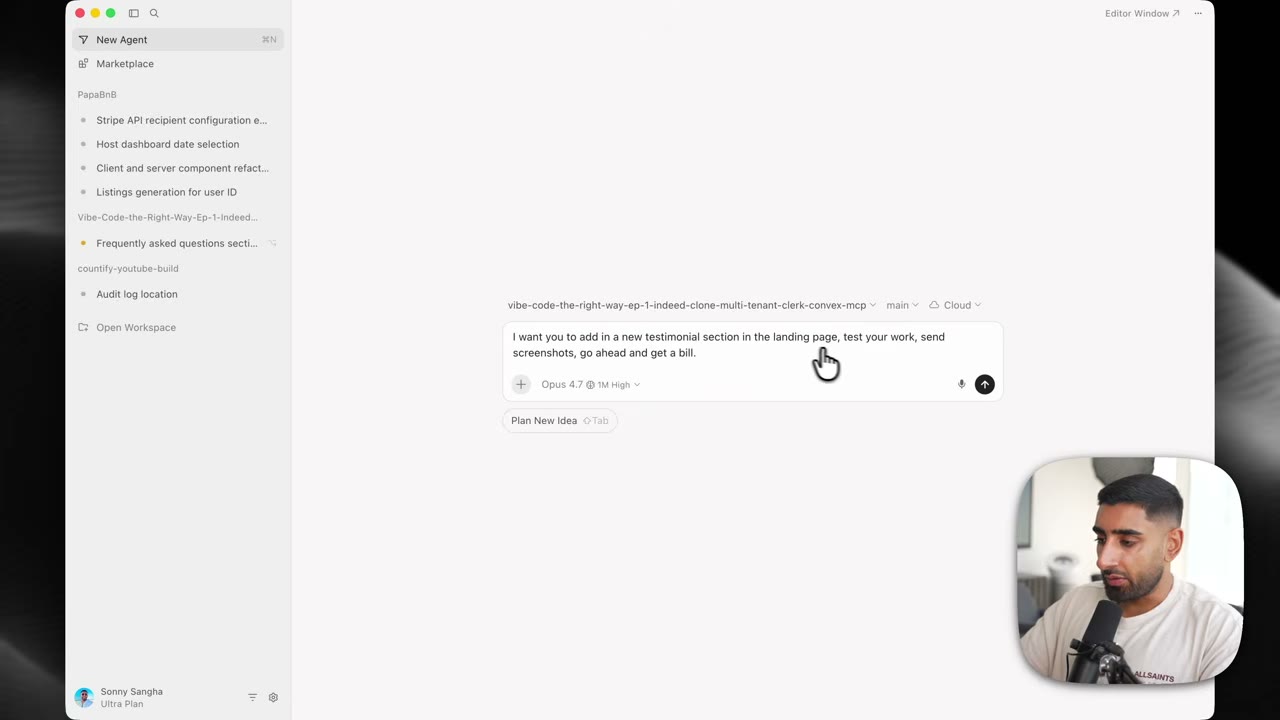
The first practical shift is to stop thinking in terms of “open editor, ask one thing, wait.” In Cursor 3, the better starting point is the agents window. This is where individual agent sessions become visible as separate units of work.
From an operational point of view, this matters because each session should represent one clear job:
- one bug fix
- one feature slice
- one refactor
- one UI pass
- one review or test task
If you mix multiple goals inside one agent session, you lose traceability quickly. When an agent returns with changes, you want to know exactly what it was asked to do, which repo it belongs to, and whether it ran locally or in the cloud.
A useful default is to group sessions by repository instead of by temporary workspace label. Grouping by repo makes it much easier to answer three questions fast:
- Which project is consuming my attention?
- Which agents are still active?
- Which work belongs together when I review or merge it?
When you open a new folder or workspace in Cursor, decide immediately whether it is a long-lived project area or a temporary experiment. Long-lived project work should be grouped consistently so that agent sprawl does not become invisible.
Build a safe local-agent foundation with Git worktrees
Running a local agent directly on your main branch is the fastest way to create avoidable cleanup work. The better pattern is to pair local agents with Git worktrees.
A worktree lets you create another working directory attached to the same repository but checked out to a different branch. For AI agent work, that is extremely useful because each agent can operate in an isolated file system state without stepping on unrelated local changes.
A practical setup looks like this:
- Keep your main project checkout clean enough for human-led work.
- Create one worktree per substantial agent task.
- Name worktree branches after the task, not after the model.
- Run the local agent inside that worktree only.
- Review the result before moving code back to your main branch.
Example commands:
# Example: create a separate worktree for a dashboard task
git worktree add ../app-dashboard-agent -b feat/dashboard-polish

# Example: create another worktree for a bug fix
git worktree add ../app-auth-fix-agent -b fix/auth-session-timeout
The naming matters. If your folder names and branch names describe the task, it becomes much easier to connect what Cursor shows in the agents window with what Git shows in your terminal and PR system.
Why worktrees are better than repeatedly stashing changes
Many developers initially try to manage parallel AI work with stashes or by letting agents work in the same checkout. That usually breaks down for four reasons:
- unrelated file edits become mixed together
- test results no longer map cleanly to one task
- environment-specific failures become harder to isolate
- merge conflicts grow worse because the change boundaries are unclear
With worktrees, each local agent has a bounded surface area. That reduces review time and makes rollbacks trivial: if the experiment is bad, delete the worktree and branch rather than untangling a polluted workspace.
A useful local-agent rule
Do not give one local agent a vague prompt like “improve the app.” Give it a branch-sized assignment, such as:
- “Refactor the settings page form validation without changing the API contract.”
- “Add FAQ accordion styling and keep existing green theme tokens.”
- “Fix login redirect loop and add regression coverage.”
This is the level of scope that reviews well and merges cleanly.
When to use a cloud agent instead of a local agent
Cloud agents are best when the task should continue without tying up your current machine or attention. They are particularly useful for:
- long-running implementation work
- background refactors
- exploratory testing
- PR drafting
- browser automation or preview checks
- continuing a task while away from your desk
The core idea is not that cloud is always better. The real advantage is continuity. You can start a task at your desk, move it to the cloud, then later inspect the result from the web interface or return to it from another device.
That makes cloud agents a strong fit for asynchronous engineering work.
A practical decision rule:
- Use a local agent when you need tight iteration with your terminal, local runtime, or quick manual checks.
- Use a cloud agent when the task can progress independently and you mainly need a reviewed result back.
Cloud-agent setup pitfall: environment variables
One of the easiest mistakes is assuming a cloud agent has the same runtime context as your laptop. It does not. If your project needs environment variables, secrets, API keys, seed URLs, or service credentials, you must configure them for the cloud environment at the repo or project level.
Typical symptoms of a missing cloud environment configuration include:
- the app builds locally but fails in the cloud
- browser testing starts but screenshots are incomplete
- integrations silently fail
- generated previews do not reflect real app behavior
Treat cloud-agent setup as a deployment surface, not merely a chat setting. At minimum, confirm:
- required
.envvariables are defined in the cloud project settings - package manager and install strategy match the repo
- build and preview commands are correct
- any browser test prerequisites are available
If a task depends on private services, make that explicit in the prompt. For example:
Use the configured preview environment. If required environment variables for billing are missing, stop and report exactly which keys are needed instead of mocking the flow.
That instruction prevents misleading “successful” outputs built on fake assumptions.
Choose models based on task economics, not brand loyalty
One of the most useful workflow lessons here is model separation by job type. You do not need to run the same expensive model for every task.
Composer 2 is attractive because it lowers the cost of keeping agents active in parallel. That changes behavior: instead of saving AI help only for “important” work, you can allocate agents more freely across refactors, UI cleanup, review assistance, and background tasks.
A practical model strategy looks like this:
- Use your most reliable model for high-risk changes, tricky debugging, or architecture-sensitive tasks.
- Use a creativity-friendly model for idea generation, UI direction, naming, or alternative implementation proposals.
- Use Composer 2 for a large share of everyday production tasks where speed, coding alignment, and cost efficiency matter.
The important operational point is not which model is “best” in abstract terms. It is whether the model choice matches the expected return on a task.
For example:
- A pricing-page CSS cleanup probably does not need your most expensive model.
- A subtle auth bug with race conditions probably does.
- A broad background refactor spanning many files may be ideal for a cheaper parallel agent if you intend to review carefully anyway.
This task-to-model mapping is what makes multi-agent workflows sustainable over time.
Organize plugins as workflow infrastructure, not as a collection hobby
Cursor’s plugin system becomes much more valuable when you treat plugins as environment infrastructure for agents rather than personal editor decoration.
Some plugins install more than a small convenience command. Depending on the package, they may include:
- MCP integrations
- skills
- commands
- hooks
- sub-agents
That means a plugin can materially change what both local and cloud agents are able to do inside a project.
Project-scoped vs user-scoped installation
This is a decision that affects team consistency.
Install a plugin at the project level when:
- the capability is required for that codebase
- cloud agents working on that repo should inherit it
- you want behavior to be more reproducible across sessions
Install a plugin at the user level when:
- it reflects your personal workflow preference
- it is useful across many unrelated repositories
- it should apply to your local profile generally rather than to one shared project
A simple rule: if an agent working in that repo would give worse results without the plugin, prefer project scope.
How to evaluate a plugin before keeping it
Do not keep plugins just because they look powerful. Evaluate them on four questions:
- Does it reduce steps in a real task you perform weekly?
- Does it add capabilities agents can reliably use?
- Does it create noisy side effects, extra prompts, or hidden automation?
- Can you explain why it exists in this project in one sentence?
If the answer to the last question is no, it probably does not belong.
A good example is a review-oriented plugin that adds structured review helpers, commands, or hooks. If your workflow includes lots of AI-generated diffs, review infrastructure is not optional. It is part of quality control.
Use MCPs and skills to narrow agent behavior
The value of MCP-style tooling and packaged skills is not only convenience. It is constraint.
General-purpose agents tend to drift when a task spans multiple systems. Giving them specific tools and skills helps reduce ambiguity. In practice, this improves output quality because the agent can operate against clearer interfaces.
Good use cases include:
- repository-aware workflows
- design-system-aware UI edits
- backend tasks that need documented commands
- cloud testing flows with explicit environment behavior
- review tasks with structured acceptance criteria
The real benefit is repeatability. When you run similar tasks again next week, the agent should not need to rediscover your workflow from scratch.
Review the agent’s plan before you review its code
A common mistake in AI coding is waiting until the diff exists before questioning the approach. Cursor’s agent-first workflow is strongest when you intercept bad direction early.
If the tool shows you the proposed plan, read it like a small engineering design review.
Ask:
- Is the scope correct?
- Is the plan touching the right files?
- Is it introducing unnecessary technology?
- Does it assume access to services it may not have?
- Does it separate implementation from validation?
A weak plan often leads to a technically busy but strategically wrong diff. Approving a vague plan because it “sounds smart” usually costs more time later.
A strong plan is concrete enough to predict the shape of the changes. Example of a better instruction:
Before editing, propose a plan that lists target files, commands you expect to run, validation steps, and any required environment assumptions. Do not start implementation until the plan is approved.
That single instruction improves reviewability significantly.
Use browser previews and screenshots as acceptance evidence
For UI work, code diffs alone are not enough. A browser preview gives you a faster answer to the only question that matters: did the change actually improve the interface without breaking behavior?
Cursor’s browser-run and cloud preview capabilities are especially useful here because they let the agent produce visible evidence instead of only claiming success.
When using this workflow, request outputs that are easy to assess:
- a screenshot of the changed component state
- a short test path describing what was clicked
- notes on any missing environment setup
- confirmation of responsive behavior if relevant
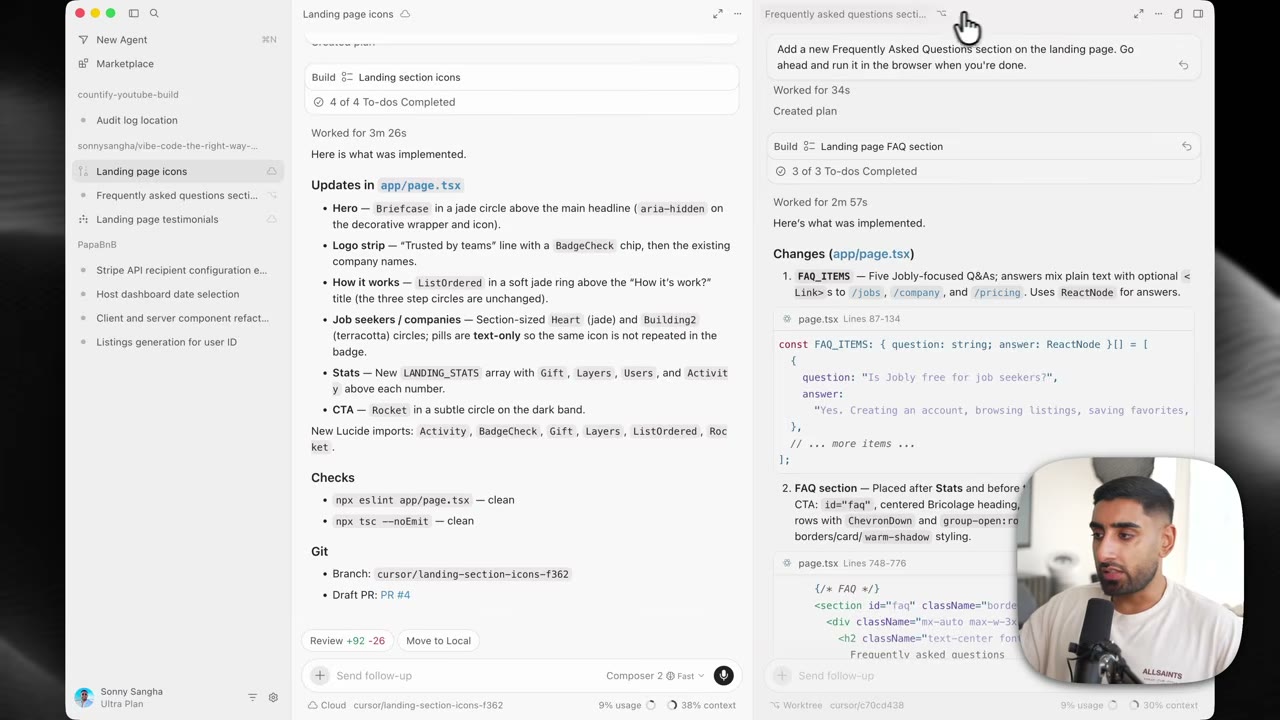
For example, if an agent updates an FAQ section, do not settle for “implemented styling changes.” Ask for:
Run the updated page in the browser, verify the first FAQ card uses the green highlight treatment, and attach a screenshot from the rendered state.
This reduces false confidence.
A practical warning about screenshot-driven iteration
Screenshots are excellent for visual confirmation, but weak for hidden behavior. They do not prove accessibility, keyboard behavior, network correctness, or data integrity. Use screenshots as one layer of evidence, not the whole test strategy.
For anything beyond simple presentation changes, combine:
- screenshot or video evidence
- terminal build/test output
- brief written explanation of what changed
- a review of the actual diff
Design mode is best for rapid visual correction, not for replacing engineering judgment
Design mode is useful when you can point at visible UI problems and issue short, direct corrections. Instead of leaving the screen, taking a screenshot manually, and rewriting context, you can iterate from the rendered interface more naturally.
This makes it well suited to:
- hierarchy adjustments
- spacing corrections
- color emphasis changes
- card treatment changes
- prominence of CTAs
- layout polish after a feature already works
Examples of good design-mode prompts:
- “Change the first FAQ item background to the green accent used elsewhere in the theme.”
- “Reduce vertical padding in the hero and keep the heading alignment unchanged.”
- “Increase contrast for the secondary button without introducing a new color token.”
Examples of bad design-mode prompts:
- “Make the page better.”
- “Redesign everything.”
- “Modernize the UI.”
The difference is precision. Design mode accelerates visual iteration when you already know the decision you want to test.
Multitask mode works only if each subtask is independently reviewable
Parallelism is not free productivity. It becomes useful only when the work is separable.
Multitask mode is powerful for splitting a visible problem into several bounded actions. For example:
- one agent adjusts FAQ styling
- one agent fixes mobile spacing
- one agent reviews copy consistency
- one agent verifies browser behavior
That is good parallelism because each output can be checked independently.
Poor use of multitask mode looks like this:
- multiple agents editing the same component tree at once
- several agents refactoring the same state logic
- parallel work without branch or worktree isolation
- no agreement on which result will become the base
When using multitask mode, define ownership explicitly in the prompt. Example:
Task A owns FAQ styling only.
Task B owns mobile spacing only.
Task C does not edit code; it reviews rendered output and reports issues.
That one constraint prevents avoidable merge pain.
Move work between local and cloud deliberately
A strong Cursor 3 workflow is not about picking one execution mode forever. It is about handing work off at the right time.
Useful handoff patterns include:
- start locally to inspect the repo and confirm commands, then move to cloud for background implementation
- start in cloud for broad exploration, then bring the work local for final debugging
- keep browser preview and test-oriented tasks in cloud while continuing local coding on another branch
The transition should happen for a reason. Good reasons include:
- you need uninterrupted background progress
- you are leaving your desk
- the task is no longer interactive
- you need isolated execution context
Bad reasons include:
- you have not defined the task clearly
- the environment is not configured
- you want to avoid reviewing the result carefully
Cloud does not fix ambiguity. It only gives ambiguity more room to run.
Review, merge, archive, and recover cleanly
An agent workflow remains useful only if finishing work is as disciplined as starting it.
Review checklist before merging agent work
- Read the plan the agent followed.
- Inspect the diff for unintended file changes.
- Confirm tests or build output match the claim.
- Verify screenshots or preview evidence if UI changed.
- Check whether secrets, mock values, or temporary debug code were introduced.
- Confirm the branch or worktree scope stayed aligned with the original task.
If merge conflicts occur, resolve them with the same rule you would use for human-created changes: preserve intent, not line count. A convenience conflict-resolution button can save time, but you still need to verify semantic correctness afterward.
Archiving sessions matters
Do not leave completed agent sessions hanging around indefinitely. Archive work that is done so the remaining queue reflects reality. That keeps the interface useful as an operational dashboard instead of a historical dump.
Also prefer tools that let you undo archive actions. In a busy workflow, accidental cleanup happens. Recoverability matters.
A practical daily operating model
Here is a strong default routine for an engineering day using Cursor 3:
- Open the agents window and group by repository.
- Identify the 2 to 4 tasks worth parallelizing.
- Create separate worktrees or cloud tasks for each meaningful unit.
- Assign one model to each task based on risk, complexity, and cost.
- Ensure required plugins and project-scoped capabilities are available.
- Approve plans before implementation starts.
- Let background agents run while you handle one high-leverage task directly.
- Review diffs, screenshots, tests, and browser previews.
- Merge only bounded, validated work.
- Archive completed sessions and note follow-up items.
This is the shift from “AI assistant” to “AI work orchestration.”
Common mistakes that make multi-agent setups feel worse instead of better
Running agents without isolated branches
If multiple agents write against the same working state, you will spend more time untangling than shipping.
Using one model for everything
This is usually a cost mistake or a latency mistake. Match the model to the task.
Installing plugins without deciding scope
If a plugin should affect cloud agents in a repo, user-only installation may not be enough. If it is personal preference only, project-level installation may add noise for others.
Trusting screenshots as complete verification
A page that looks right can still be broken.
Accepting vague plans
If the plan is fuzzy, the output will usually be fuzzy too.
Forgetting cloud environment parity
Missing environment variables are one of the easiest reasons for cloud-agent confusion.
Final operational checklist
Use this checklist before you rely on a parallel Cursor 3 setup for real project work.
- Cursor 3 agents window is your main entry point.
- Sessions are grouped by repository.
- Each agent has one clearly scoped task.
- Local agents run inside dedicated Git worktrees.
- Cloud agents have required environment variables configured.
- Model choice is based on task economics and risk.
- Required plugins are installed at the correct scope.
- MCPs or skills are used where they improve repeatability.
- Agent plans are reviewed before implementation.
- Browser previews or screenshots are requested for UI changes.
- Diffs, builds, and tests are checked before merge.
- Completed sessions are archived to keep the queue clean.
Once these pieces are in place, Cursor 3 becomes more than a faster editor. It becomes a control surface for parallel software execution.
Source attribution
This article is based on the YouTube tutorial "Cursor 3.0 is officially the new King (My AI coding setup revealed)" by Sonny Sangha, published on May 13, 2026: https://www.youtube.com/watch?v=la_tAgBKqO0